Skip to content

Changelog

New updates and improvements at Cloudflare.

Application performance
hero image
  1. Cloudflare's stale-while-revalidate support is now fully asynchronous. Previously, the first request for a stale (expired) asset in cache had to wait for an origin response, after which that visitor received a REVALIDATED or EXPIRED status. Now, the first request after the asset expires triggers revalidation in the background and immediately receives stale content with an UPDATING status. All following requests also receive stale content with an UPDATING status until the origin responds, after which subsequent requests receive fresh content with a HIT status.

    stale-while-revalidate is a Cache-Control directive set by your origin server that allows Cloudflare to serve an expired cached asset while a fresh copy is fetched from the origin.

    Asynchronous revalidation brings:

    • Lower latency: No visitor is waiting for the origin when the asset is already in cache. Every request is served from cache during revalidation.
    • Consistent experience: All visitors receive the same cached response during revalidation.
    • Reduced error exposure: The first request is no longer vulnerable to origin timeouts or errors. All visitors receive a cached response while revalidation happens in the background.

    Availability

    This change is live for all Free, Pro, and Business zones. Approximately 75% of Enterprise zones have been migrated, with the remaining zones rolling out throughout the quarter.

    Get started

    To use this feature, make sure your origin includes the stale-while-revalidate directive in the Cache-Control header. Refer to the Cache-Control documentation for details.

  1. You can now control how Cloudflare buffers HTTP request and response bodies using two new settings in Configuration Rules.

    Request body buffering

    Controls how Cloudflare buffers HTTP request bodies before forwarding them to your origin server:

    ModeBehavior
    Standard (default)Cloudflare can inspect a prefix of the request body for enabled functionality such as WAF and Bot Management.
    FullBuffers the entire request body before sending to origin.
    NoneNo buffering — the request body streams directly to origin without inspection.

    Response body buffering

    Controls how Cloudflare buffers HTTP response bodies before forwarding them to the client:

    ModeBehavior
    Standard (default)Cloudflare can inspect a prefix of the response body for enabled functionality.
    NoneNo buffering — the response body streams directly to the client without inspection.

    API example

    {
    "action": "set_config",
    "action_parameters": {
    "request_body_buffering": "standard",
    "response_body_buffering": "none"
    }
    }

    For more information, refer to Configuration Rules.

  1. Cloudflare Rulesets now includes encode_base64() and sha256() functions, enabling you to generate signed request headers directly in rule expressions. These functions support common patterns like constructing a canonical string from request attributes, computing a SHA256 digest, and Base64-encoding the result.


    New functions

    FunctionDescriptionAvailability
    encode_base64(input, flags)Encodes a string to Base64 format. Optional flags parameter: u for URL-safe encoding, p for padding (adds = characters to make the output length a multiple of 4, as required by some systems). By default, output is standard Base64 without padding.All plans (in header transform rules)
    sha256(input)Computes a SHA256 hash of the input string.Requires enablement

    Examples

    Encode a string to Base64 format:

    encode_base64("hello world")

    Returns: aGVsbG8gd29ybGQ

    Encode a string to Base64 format with padding:

    encode_base64("hello world", "p")

    Returns: aGVsbG8gd29ybGQ=

    Perform a URL-safe Base64 encoding of a string:

    encode_base64("hello world", "u")

    Returns: aGVsbG8gd29ybGQ

    Compute the SHA256 hash of a secret token:

    sha256("my-token")

    Returns a hash that your origin can validate to authenticate requests.

    Compute the SHA256 hash of a string and encode the result to Base64 format:

    encode_base64(sha256("my-token"))

    Combines hashing and encoding for systems that expect Base64-encoded signatures.

    For more information, refer to the Functions reference.

  1. New functions for array and map operations

    Cloudflare Rulesets now include new functions that enable advanced expression logic for evaluating arrays and maps. These functions allow you to build rules that match against lists of values in request or response headers, enabling use cases like country-based blocking using custom headers.


    New functions

    FunctionDescription
    split(source, delimiter)Splits a string into an array of strings using the specified delimiter.
    join(array, delimiter)Joins an array of strings into a single string using the specified delimiter.
    has_key(map, key)Returns true if the specified key exists in the map.
    has_value(map, value)Returns true if the specified value exists in the map.

    Example use cases

    Check if a country code exists in a header list:

    has_value(split(http.response.headers["x-allow-country"][0], ","), ip.src.country)

    Check if a specific header key exists:

    has_key(http.request.headers, "x-custom-header")

    Join array values for logging or comparison:

    join(http.request.headers.names, ", ")

    For more information, refer to the Functions reference.

  1. The ip.src.metro_code field in the Ruleset Engine is now populated with DMA (Designated Market Area) data.

    You can use this field to build rules that target traffic based on geographic market areas, enabling more granular location-based policies for your applications.

    Field details

    FieldTypeDescription
    ip.src.metro_codeString | nullThe metro code (DMA) of the incoming request's IP address. Returns the designated market area code for the client's location.

    Example filter expression:

    ip.src.metro_code eq "501"

    For more information, refer to the Fields reference.

  1. You can now review detailed audit logs for cache purge events, giving you visibility into what purge requests were sent, what they contained, and by whom. Audit your purge requests via the Dashboard or API for all purge methods:

    • Purge everything
    • List of prefixes
    • List of tags
    • List of hosts
    • List of files

    Example

    The detailed audit payload is visible within the Cloudflare Dashboard (under Manage Account > Audit Logs) and via the API. Below is an example of the Audit Logs v2 payload structure:

    {
    "action": {
    "result": "success",
    "type": "create"
    },
    "actor": {
    "id": "1234567890abcdef",
    "email": "user@example.com",
    "type": "user"
    },
    "resource": {
    "product": "purge_cache",
    "request": {
    "files": [
    "https://example.com/images/logo.png",
    "https://example.com/css/styles.css"
    ]
    }
    },
    "zone": {
    "id": "023e105f4ecef8ad9ca31a8372d0c353",
    "name": "example.com"
    }
    }

    Get started

    To get started, refer to the Audit Logs documentation.

  1. You can now see the exact cache key generated for any request directly in Cloudflare Trace. This visibility helps you troubleshoot cache hits and misses, and verify that your Custom Cache Keys — configured via Cache Rules or Page Rules — are working as intended.

    Previously, diagnosing caching behavior required inferring the key from configuration settings. Now, you can confirm that your custom logic for headers, query strings, and device types is correctly applied.

    Access Trace via the dashboard or API, either manually for ad-hoc debugging or automated as part of your quality-of-service monitoring.

    Example scenario

    If you have a Cache Rule that segments content based on a specific cookie (for example, user_region), run a Trace with that cookie present to confirm the user_region value appears in the resulting cache key.

    The Trace response includes the cache key in the cache object:

    {
    "step_name": "request",
    "type": "cache",
    "matched": true,
    "public_name": "Cache Parameters",
    "cache": {
    "key": {
    "zone_id": "023e105f4ecef8ad9ca31a8372d0c353",
    "scheme": "https",
    "host": "example.com",
    "uri": "/images/hero.jpg"
    },
    "key_string": "023e105f4ecef8ad9ca31a8372d0c353::::https://example.com/images/hero.jpg:::::"
    }
    }

    Get started

    To learn more, refer to the Trace documentation and our guide on Custom Cache Keys.

  1. Build rules based on TCP transport and latency

    Cloudflare now provides two new request fields in the Ruleset engine that let you make decisions based on whether a request used TCP and the measured TCP round-trip time between the client and Cloudflare. These fields help you understand protocol usage across your traffic and build policies that respond to network performance. For example, you can distinguish TCP from QUIC traffic or route high latency requests to alternative origins when needed.


    New fields

    FieldTypeDescription
    cf.edge.client_tcpBooleanIndicates whether the request used TCP. A value of true means the client connected using TCP instead of QUIC.
    cf.timings.client_tcp_rtt_msecNumberReports the smoothed TCP round-trip time between the client and Cloudflare in milliseconds. For example, a value of 20 indicates roughly twenty milliseconds of RTT.

    Example filter expression:

    cf.edge.client_tcp && cf.timings.client_tcp_rtt_msec < 100

    More information can be found in the Rules language fields reference.

  1. Cloudflare Load Balancing now supports Monitor Groups, a powerful new way to combine multiple health monitors into a single, logical group. This allows you to create sophisticated health checks that more accurately reflect the true availability of your applications by assessing multiple services at once.

    With Monitor Groups, you can ensure that all critical components of an application are healthy before sending traffic to an origin pool, enabling smarter failover decisions and greater resilience. This feature is now available via the API for customers with an Enterprise Load Balancing subscription.

    What you can do:

    • Combine Multiple Monitors: Group different health monitors (for example, HTTP, TCP) that check various application components, like a primary API gateway and a specific /login service.
    • Isolate Monitors for Observation: Mark a monitor as "monitoring only" to receive alerts and data without it affecting a pool's health status or traffic steering. This is perfect for testing new checks or observing non-critical dependencies.
    • Improve Steering Intelligence: Latency for Dynamic Steering is automatically averaged across all active monitors in a group, providing a more holistic view of an origin's performance.

    This enhancement is ideal for complex, multi-service applications where the health of one component depends on another. By aggregating health signals, Monitor Groups provide a more accurate and comprehensive assessment of your application's true status.

    For detailed information and API configuration guides, please visit our developer documentation for Monitor Groups.

  1. What's New

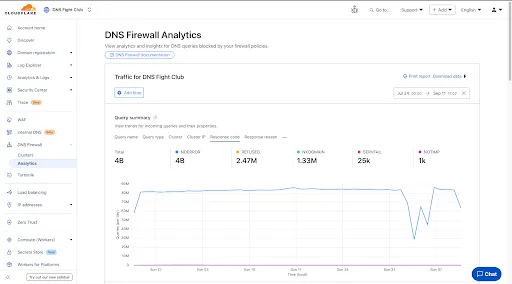
    Access GraphQL-powered DNS Firewall analytics directly in the Cloudflare dashboard.

    DNS Firewall Analytics UI

    Explore Four Interactive Panels

    • Query summary: Describes trends over time, segmented by dimensions.
    • Query statistics: Describes totals, cached/uncached queries, and processing/response times.
    • DNS queries by data center: Describes global view and the top 10 data centers.
    • Top query statistics: Shows a breakdown by key dimensions, with search and expand options (up to top 100 items).

    Additional features:

    • Apply filters and time ranges once. Changes reflect across all panels.
    • Filter by dimensions like query name, query type, cluster, data center, protocol (UDP/TCP), IP version, response code/reason, and more.
    • Access up to 62 days of historical data with flexible intervals.

    Availability

    Available to all DNS Firewall customers as part of their existing subscription.

    Where to Find It

  1. Smart Tiered Cache now falls back to Generic Tiered Cache when the origin location cannot be determined, improving cache precision for your content.

    Previously, when Smart Tiered Cache was unable to select the optimal upper tier (such as when origins are masked by Anycast IPs), latency could be negatively impacted. This fallback now uses Generic Tiered Cache instead, providing better performance and cache efficiency.

    How it works

    When Smart Tiered Cache falls back to Generic Tiered Cache:

    1. Multiple upper-tiers: Uses all of Cloudflare's global data centers as a network of upper-tiers instead of a single optimal location.
    2. Distributed cache requests: Lower-tier data centers can query any available upper-tier for cached content.
    3. Improved global coverage: Provides better cache hit ratios across geographically distributed visitors.
    4. Automatic fallback: Seamlessly transitions when origin location cannot be determined, such as with Anycast-masked origins.

    Benefits

    • Preserves high performance during fallback: Smart Tiered Cache now maintains strong cache efficiency even when optimal upper tier selection is not possible.
    • Minimizes latency impact: Automatically uses Generic Tiered Cache topology to keep performance high when origin location cannot be determined.
    • Seamless experience: No configuration changes or intervention required when fallback occurs.
    • Improved resilience: Smart Tiered Cache remains effective across diverse origin infrastructure, including Anycast-masked origins.

    Get started

    This improvement is automatically applied to all zones using Smart Tiered Cache. No action is required on your part.

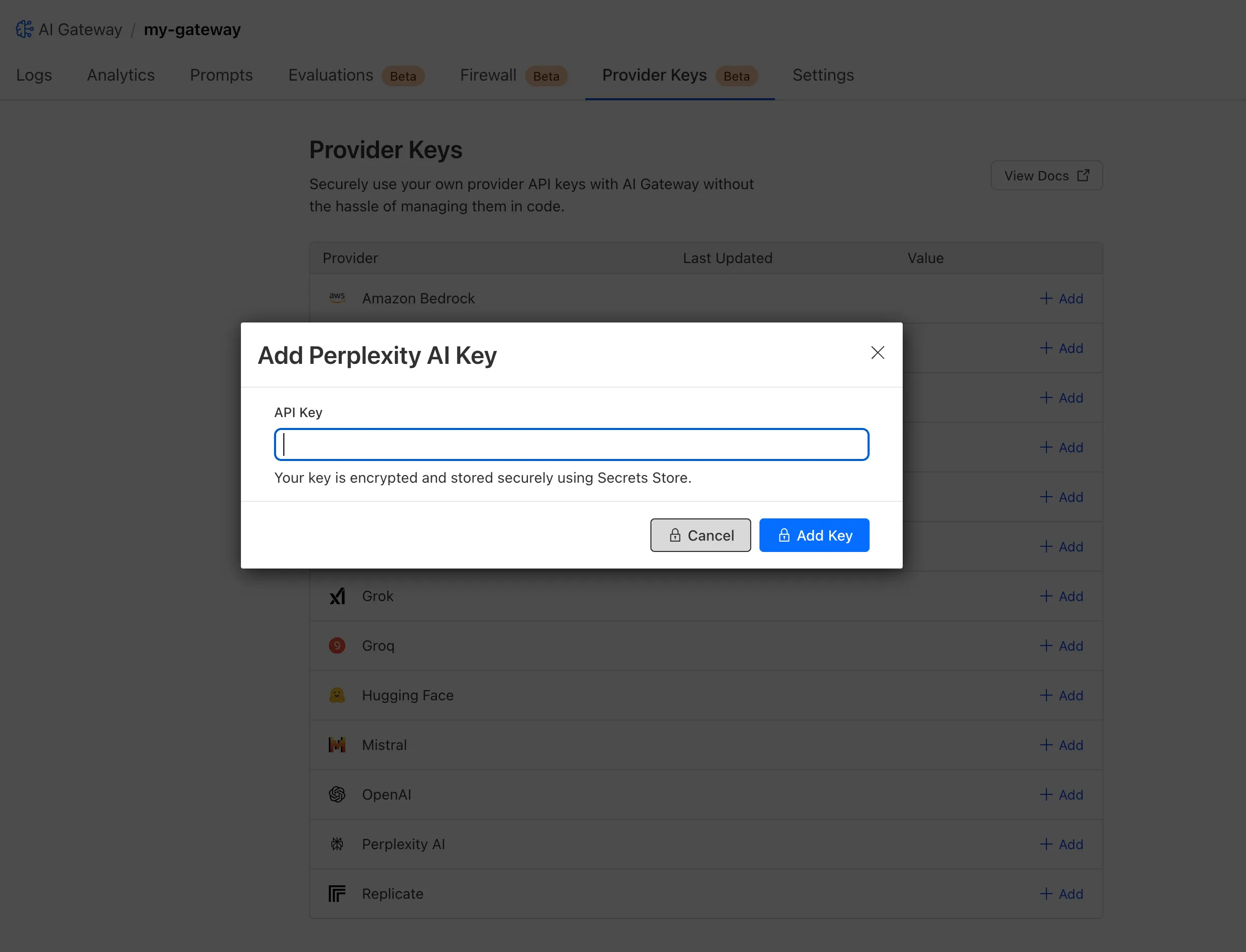
  1. Cloudflare Secrets Store is now integrated with AI Gateway, allowing you to store, manage, and deploy your AI provider keys in a secure and seamless configuration through Bring Your Own Key. Instead of passing your AI provider keys directly in every request header, you can centrally manage each key with Secrets Store and deploy in your gateway configuration using only a reference, rather than passing the value in plain text.

    You can now create a secret directly from your AI Gateway in the dashboard by navigating into your gateway -> Provider Keys -> Add.

    Import repo or choose template

    You can also create your secret with the newly available ai_gateway scope via wrangler, the Secrets Store dashboard, or the API.

    Then, pass the key in the request header using its Secrets Store reference:

    Terminal window
    curl -X POST https://gateway.ai.cloudflare.com/v1/<ACCOUNT_ID>/my-gateway/anthropic/v1/messages \
    --header 'cf-aig-authorization: ANTHROPIC_KEY_1 \
    --header 'anthropic-version: 2023-06-01' \
    --header 'Content-Type: application/json' \
    --data '{"model": "claude-3-opus-20240229", "messages": [{"role": "user", "content": "What is Cloudflare?"}]}'

    Or, using Javascript:

    import Anthropic from '@anthropic-ai/sdk';
    const anthropic = new Anthropic({
    apiKey: "ANTHROPIC_KEY_1",
    baseURL: "https://gateway.ai.cloudflare.com/v1/<ACCOUNT_ID>/my-gateway/anthropic",
    });
    const message = await anthropic.messages.create({
    model: 'claude-3-opus-20240229',
    messages: [{role: "user", content: "What is Cloudflare?"}],
    max_tokens: 1024
    });

    For more information, check out the blog!

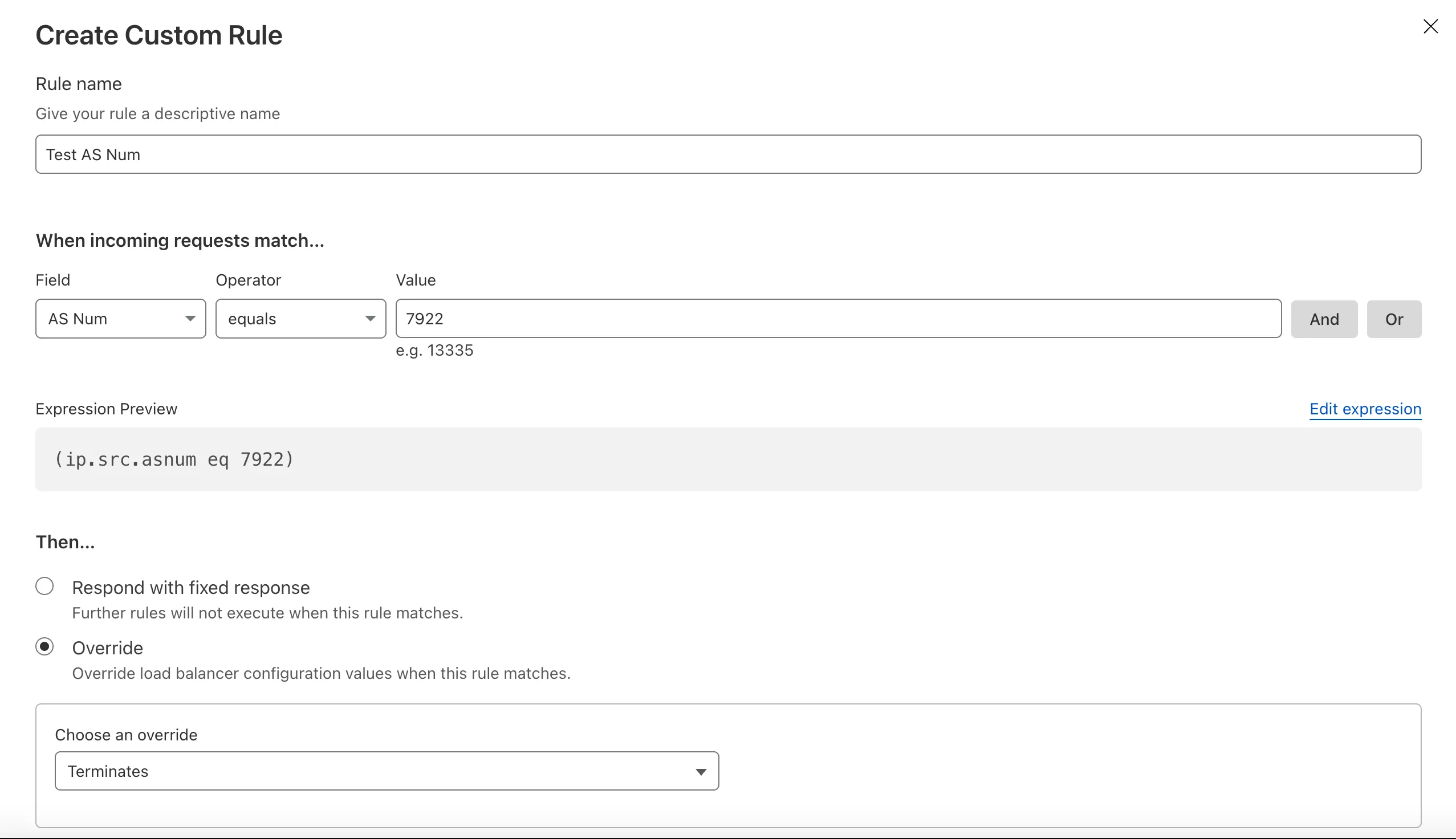
  1. You can now create more granular, network-aware Custom Rules in Cloudflare Load Balancing using the Autonomous System Number (ASN) of an incoming request.

    This allows you to steer traffic with greater precision based on the network source of a request. For example, you can route traffic from specific Internet Service Providers (ISPs) or enterprise customers to dedicated infrastructure, optimize performance, or enforce compliance by directing certain networks to preferred data centers.

    Create a Load Balancing Custom Rule using AS Num

    To get started, create a Custom Rule in your Load Balancer and select AS Num from the Field dropdown.

  1. Cloudflare Load Balancing Monitors support loading and applying settings for a specific zone to monitoring requests to origin endpoints. This feature has been migrated to new infrastructure to improve reliability, performance, and accuracy.

    All zone monitors have been tested against the new infrastructure. There should be no change to health monitoring results of currently healthy and active pools. Newly created or re-enabled pools may need validation of their monitor zone settings before being introduced to service, especially regarding correct application of mTLS.

    What you can expect:

    • More reliable application of zone settings to monitoring requests, including
      • Authenticated Origin Pulls
      • Aegis Egress IP Pools
      • Argo Smart Routing
      • HTTP/2 to Origin
    • Improved support and bug fixes for retries, redirects, and proxied origin resolution
    • Improved performance and reliability of monitoring requests within the Cloudflare network
    • Unrelated CDN or WAF configuration changes should have no risk of impact to pool health
  1. Authoritative DNS analytics are now available on the account level via the Cloudflare GraphQL Analytics API.

    This allows users to query DNS analytics across multiple zones in their account, by using the accounts filter.

    Here is an example to retrieve the most recent DNS queries across all zones in your account that resulted in an NXDOMAIN response over a given time frame. Please replace a30f822fcd7c401984bf85d8f2a5111c with your actual account ID.

    GraphQL example for account-level DNS analytics
    query GetLatestNXDOMAINResponses {
    viewer {
    accounts(filter: { accountTag: "a30f822fcd7c401984bf85d8f2a5111c" }) {
    dnsAnalyticsAdaptive(
    filter: {
    date_geq: "2025-06-16"
    date_leq: "2025-06-18"
    responseCode: "NXDOMAIN"
    }
    limit: 10000
    orderBy: [datetime_DESC]
    ) {
    zoneTag
    queryName
    responseCode
    queryType
    datetime
    }
    }
    }
    }

    To learn more and get started, refer to the DNS Analytics documentation.

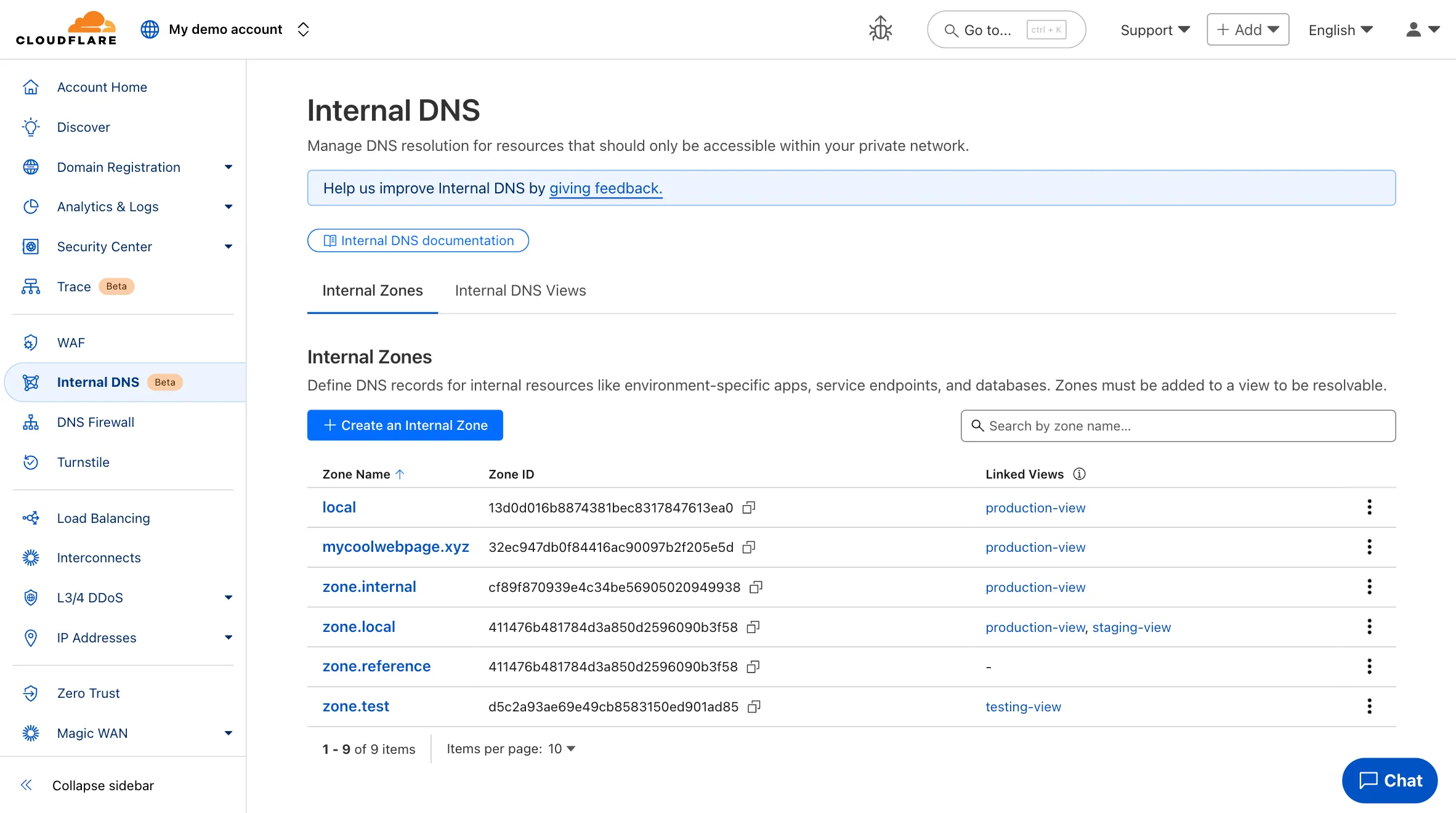
  1. Participating beta testers can now fully configure Internal DNS directly in the Cloudflare dashboard.

    Internal DNS enables customers to:

    • Map internal hostnames to private IPs for services, devices, and applications not exposed to the public Internet

    • Resolve internal DNS queries securely through Cloudflare Gateway

    • Use split-horizon DNS to return different responses based on network context

    • Consolidate internal and public DNS zones within a single management platform

    What’s new in this release:

    • Beta participants can now create and manage internal zones and views in the Cloudflare dashboard
    Internal DNS UI

    To learn more and get started, refer to the Internal DNS documentation.

  1. Enterprise customers can now select NSEC3 as method for proof of non-existence on their zones.

    What's new:

    • NSEC3 support for live-signed zones – For both primary and secondary zones that are configured to be live-signed (also known as "on-the-fly signing"), NSEC3 can now be selected as proof of non-existence.

    • NSEC3 support for pre-signed zones – Secondary zones that are transferred to Cloudflare in a pre-signed setup now also support NSEC3 as proof of non-existence.

    For more information and how to enable NSEC3, refer to the NSEC3 documentation.

  1. Custom Errors can now fetch and store assets and error pages from your origin even if they are served with a 4xx or 5xx HTTP status code — previously, only 200 OK responses were allowed.

    What’s new:

    • You can now upload error pages and error assets that return error status codes (for example, 403, 500, 502, 503, 504) when fetched.
    • These assets are stored and minified at the edge, so they can be reused across multiple Custom Error rules without triggering requests to the origin.

    This is especially useful for retrieving error content or downtime banners from your backend when you can’t override the origin status code.

    Learn more in the Custom Errors documentation.

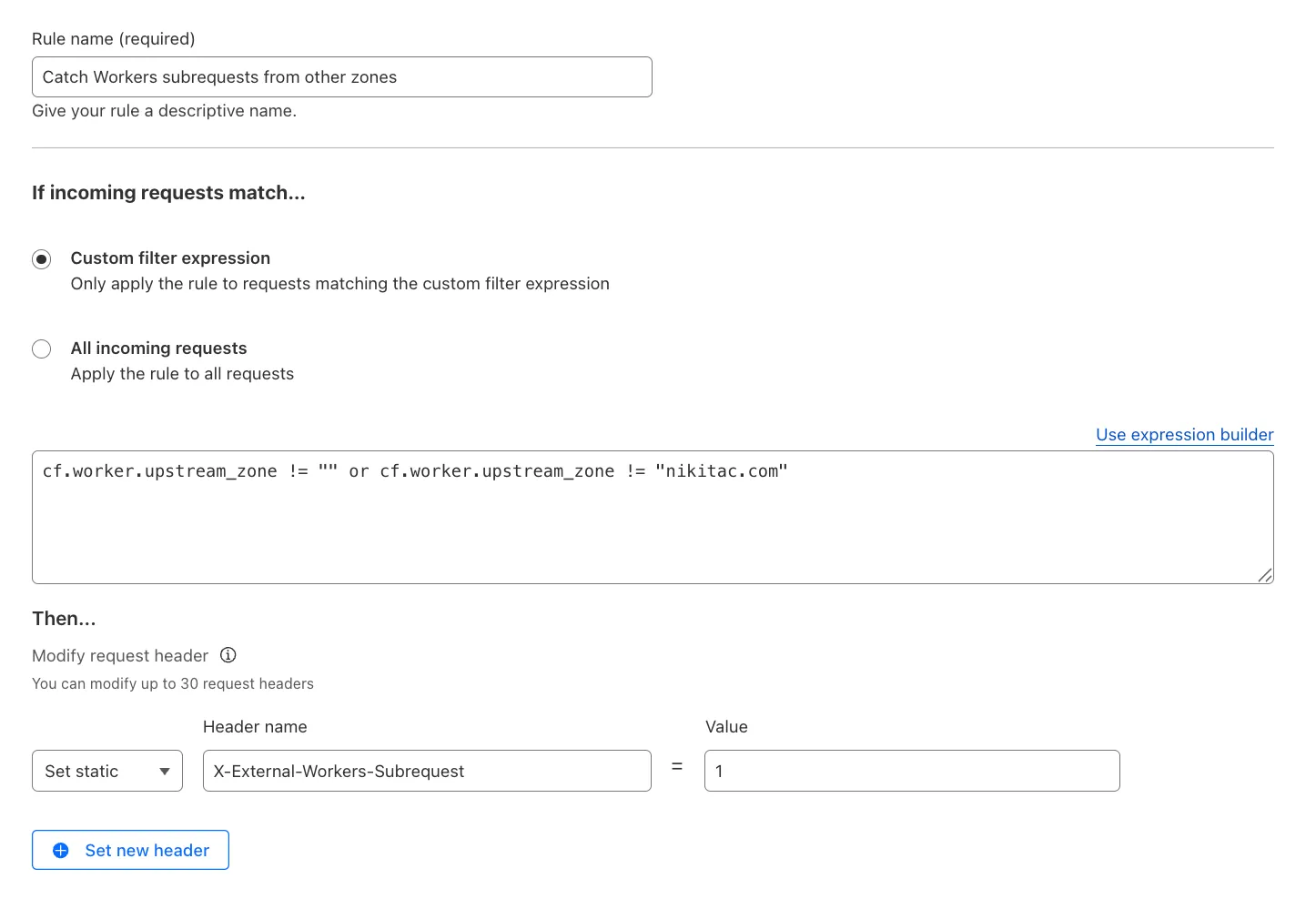
  1. You can now use the cf.worker.upstream_zone field in Transform Rules to control rule execution based on whether a request originates from Workers, including subrequests issued by Workers in other zones.

    Match Workers subrequests by upstream zone in Transform Rules

    What's new:

    • cf.worker.upstream_zone is now supported in Transform Rules expressions.
    • Skip or apply logic conditionally when handling Workers subrequests.

    For example, to add a header when the subrequest comes from another zone:

    Text in Expression Editor (replace myappexample.com with your domain):

    (cf.worker.upstream_zone != "" and cf.worker.upstream_zone != "myappexample.com")

    Selected operation under Modify request header: Set static

    Header name: X-External-Workers-Subrequest

    Value: 1
    This gives you more granular control in how you handle incoming requests for your zone.

    Learn more in the Transform Rules documentation and Rules language fields reference.

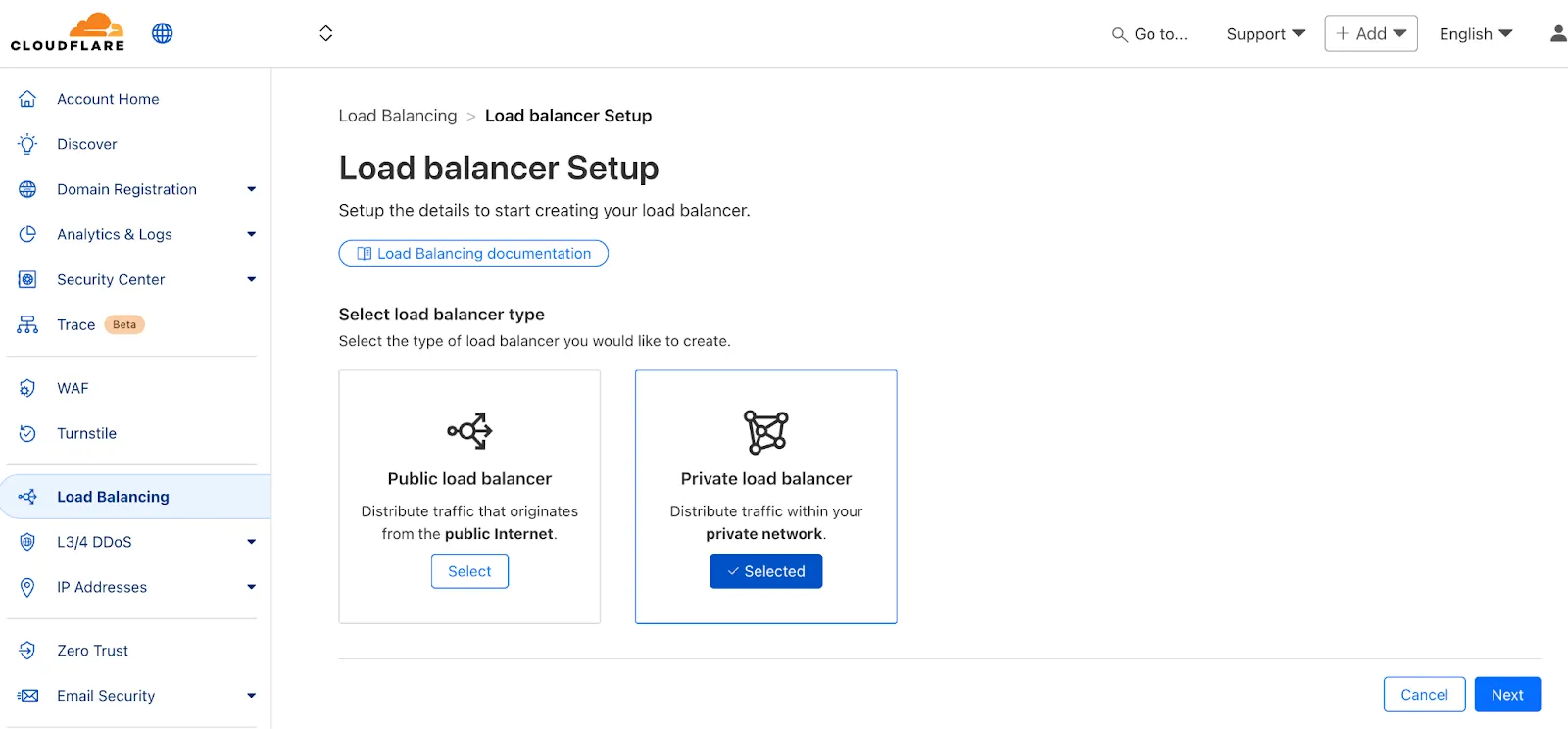
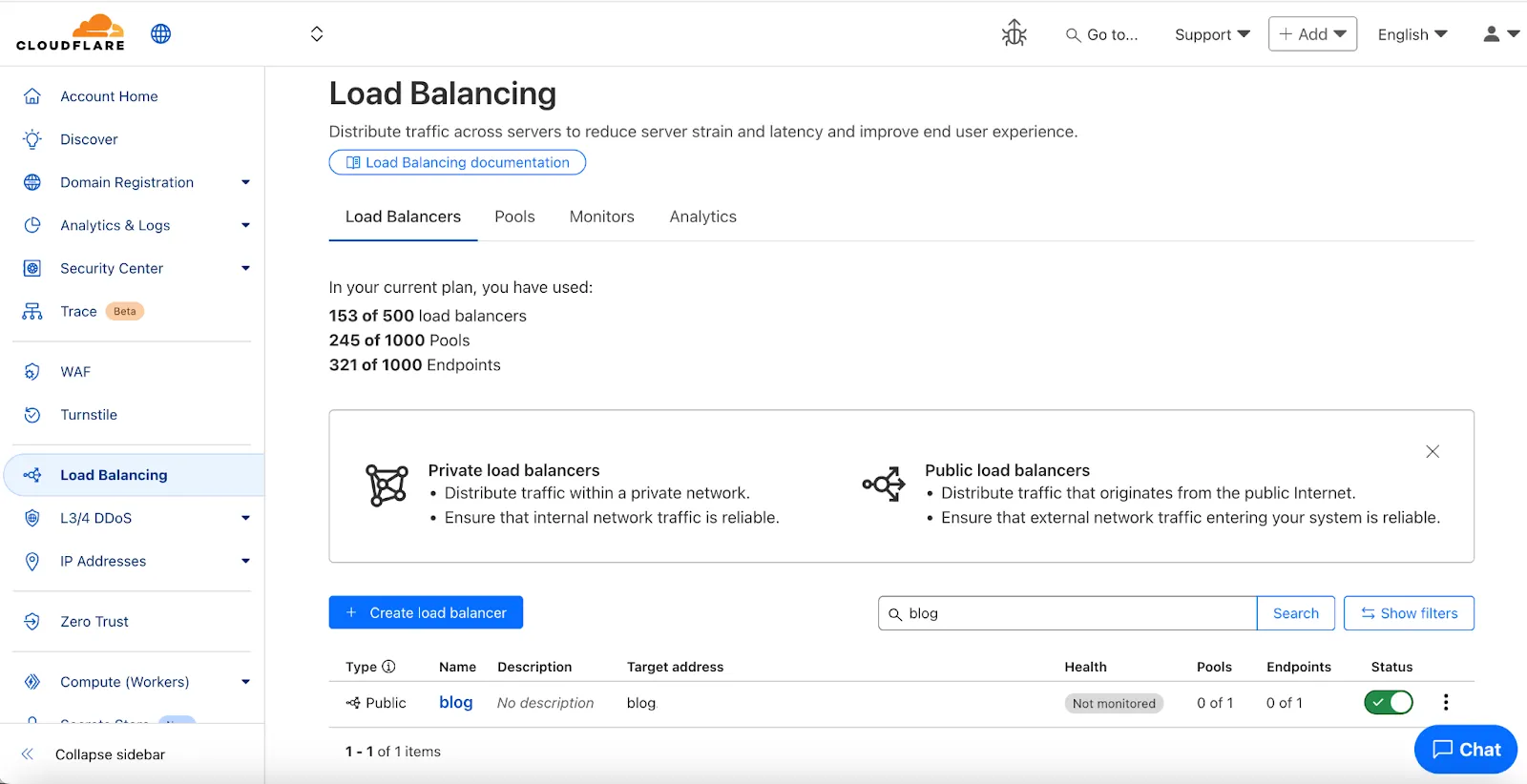
  1. We've made two large changes to load balancing:

    • Redesigned the user interface, now centralized at the account level.
    • Introduced Private Load Balancers to the UI, enabling you to manage traffic for all of your external and internal applications in a single spot.

    This update streamlines how you manage load balancers across multiple zones and extends robust traffic management to your private network infrastructure.

    Load Balancing UI

    Key Enhancements:

    • Account-Level UI Consolidation:

      • Unified Management: Say goodbye to navigating individual zones for load balancing tasks. You can now view, configure, and monitor all your load balancers across every zone in your account from a single, intuitive interface at the account level.

      • Improved Efficiency: This centralized approach provides a more streamlined workflow, making it faster and easier to manage both your public-facing and internal traffic distribution.

    • Private Network Load Balancing:

      • Secure Internal Application Access: Create Private Load Balancers to distribute traffic to applications hosted within your private network, ensuring they are not exposed to the public Internet.

      • WARP & Magic WAN Integration: Effortlessly direct internal traffic from users connected via Cloudflare WARP or through your Magic WAN infrastructure to the appropriate internal endpoint pools.

      • Enhanced Security for Internal Resources: Combine reliable Load Balancing with Zero Trust access controls to ensure your internal services are both performant and only accessible by verified users.

    Private Load Balancers
  1. Shopify merchants can now onboard to O2O automatically, without needing to contact support or community members.

    What's new:

    • Automatic enablement – O2O is available for all mutual Cloudflare and Shopify customers.

    • Branded record display – Merchants see a Shopify logo in DNS records, complete with helpful tooltips.

      Shopify O2O logo

    • Checkout protection – Workers and Snippets are blocked from running on the checkout path to reduce risk and improve security.

    For more information, refer to the provider guide.

  1. You can now enable Polish with the webp format directly in Configuration Rules, allowing you to optimize image delivery for specific routes, user agents, or A/B tests — without applying changes zone-wide.

    What’s new:

    • WebP is now a supported value in the Polish setting for Configuration Rules.

    This gives you more precise control over how images are compressed and delivered, whether you're targeting modern browsers, running experiments, or tailoring performance by geography or device type.

    Learn more in the Polish and Configuration Rules documentation.

  1. With upgraded limits to all free and paid plans, you can now scale more easily with Cloudflare for SaaS and Secrets Store.

    Cloudflare for SaaS allows you to extend the benefits of Cloudflare to your customers via their own custom or vanity domains. Now, the limit for custom hostnames on a Cloudflare for SaaS Pay-as-you-go plan has been raised from 5,000 custom hostnames to 50,000 custom hostnames.

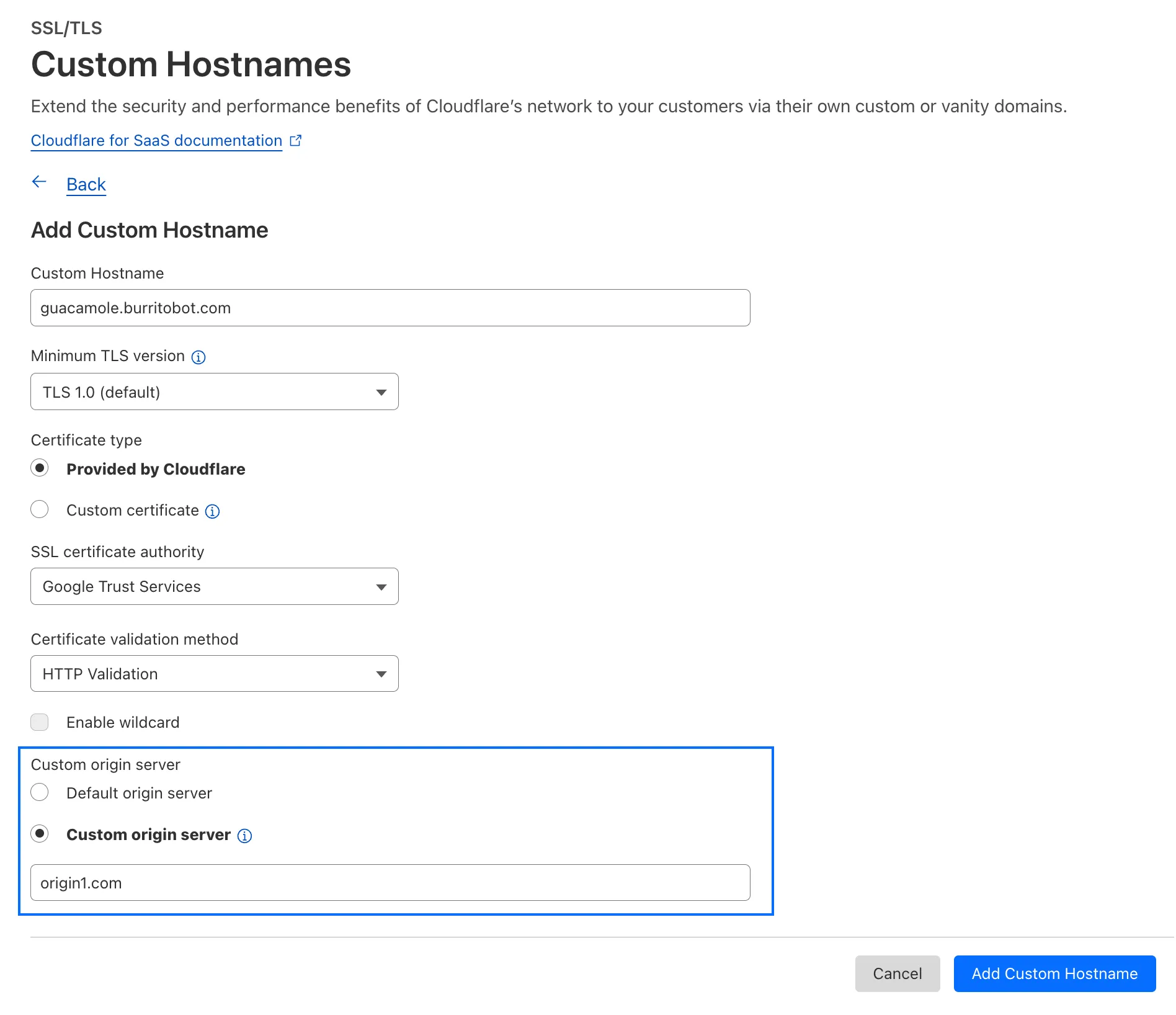
    With custom origin server -- previously an enterprise-only feature -- you can route traffic from one or more custom hostnames somewhere other than your default proxy fallback. Custom origin server is now available to Cloudflare for SaaS customers on Free, Pro, and Business plans.

    You can enable custom origin server on a per-custom hostname basis via the API or the UI:

    Import repo or choose template

    Currently in beta with a Workers integration, Cloudflare Secrets Store allows you to store, manage, and deploy account level secrets from a secure, centralized platform your Cloudflare Workers. Now, you can create and deploy 100 secrets per account. Try it out in the dashboard, with Wrangler, or via the API today.

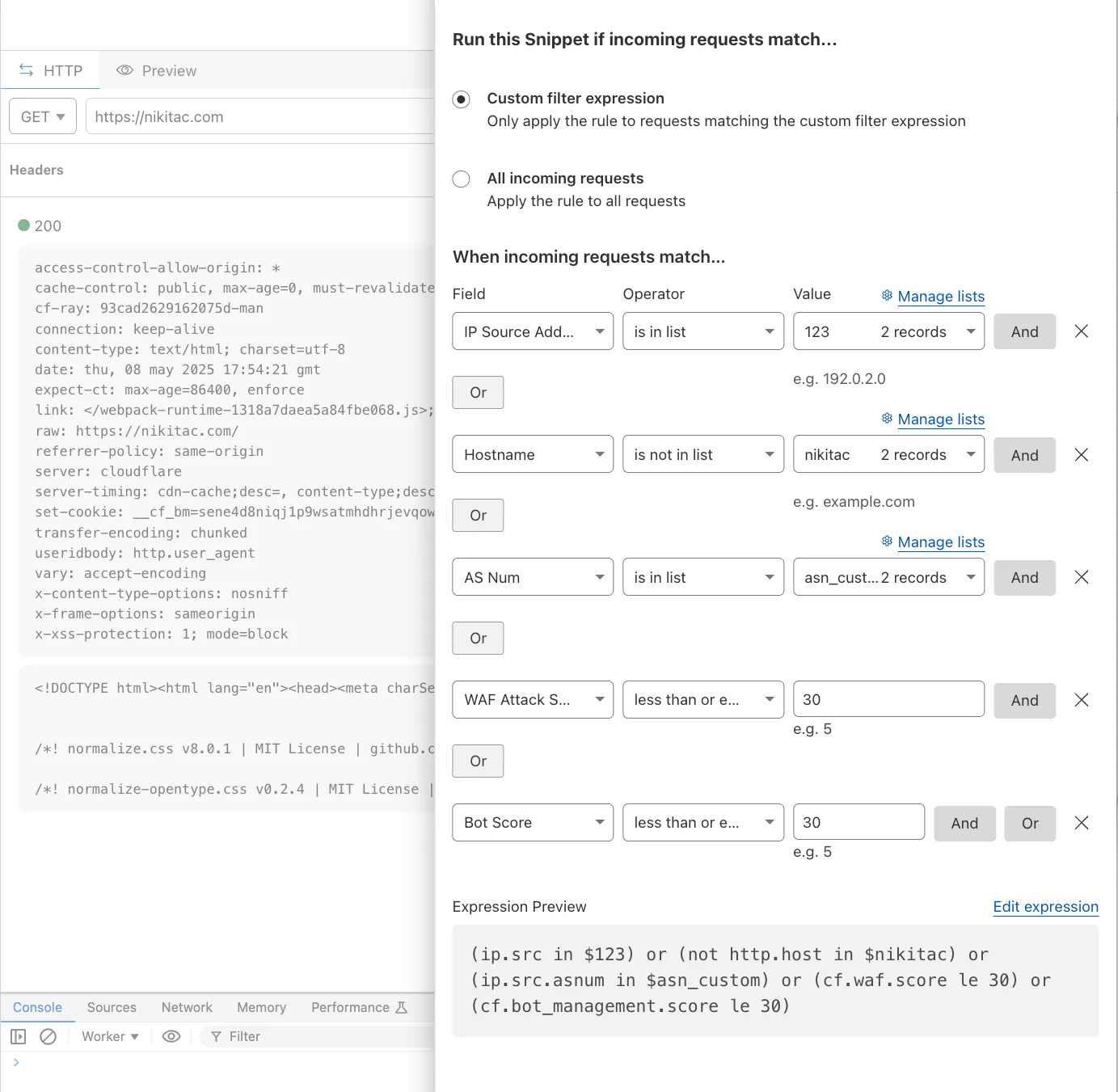
  1. You can now use IP, Autonomous System (AS), and Hostname custom lists to route traffic to Snippets and Cloud Connector, giving you greater precision and control over how you match and process requests at the edge.

    In Snippets, you can now also match on Bot Score and WAF Attack Score, unlocking smarter edge logic for everything from request filtering and mitigation to tarpitting and logging.

    What’s new:

    • Custom lists matching – Snippets and Cloud Connector now support user-created IP, AS, and Hostname lists via dashboard or Lists API. Great for shared logic across zones.
    • Bot Score and WAF Attack Score – Use Cloudflare’s intelligent traffic signals to detect bots or attacks and take advanced, tailored actions with just a few lines of code.
    New fields in Snippets

    These enhancements unlock new possibilities for building smarter traffic workflows with minimal code and maximum efficiency.

    Learn more in the Snippets and Cloud Connector documentation.

  1. Cloudflare Load Balancing now supports UDP (Layer 4) and ICMP (Layer 3) health monitors for private endpoints. This makes it simple to track the health and availability of internal services that don’t respond to HTTP, TCP, or other protocol probes.

    What you can do:

    • Set up ICMP ping monitors to check if your private endpoints are reachable.
    • Use UDP monitors for lightweight health checks on non-TCP workloads, such as DNS, VoIP, or custom UDP-based services.
    • Gain better visibility and uptime guarantees for services running behind Private Network Load Balancing, without requiring public IP addresses.

    This enhancement is ideal for internal applications that rely on low-level protocols, especially when used in conjunction with Cloudflare Tunnel, WARP, and Magic WAN to create a secure and observable private network.

    Learn more about Private Network Load Balancing or view the full list of supported health monitor protocols.